|
   
| How to keep your job as an editor |
November, 2008
How to keep your job as an editor
by Jon Chappell
 As an editor, there are certain technical things you can do that will, in most cases, result in instant dismissal by your employer. Here are some tips on how to avoid these pitfalls. As an editor, there are certain technical things you can do that will, in most cases, result in instant dismissal by your employer. Here are some tips on how to avoid these pitfalls.
Black frames
We've all done it - you've got the timeline zoomed out, you drag a clip and think it snapped to the end of another clip but really it snapped to a marker or overlapping bit of audio right next to it. Consequently there'll be a gap and a flash of black when the clip is played back - which producers and audiences never fail to notice.
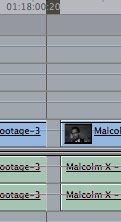
Before you output, put the playhead at the start of the timeline and press Shift-G. This will jump the playhead to the next gap in the timeline. If you encounter a gap, press Ctrl-G to close it. If no more gaps can be found, the playhead will jump to the end of the timeline.
Unsafe luma levels
Maximum white is higher on a computer than it is on a TV. Consequently, it is possible to set white levels beyond maximum levels for NTSC broadcast. If this happens, overmodulation can occur which means that the signal can leak to radio frequencies other than the ones assigned to the TV channel, resulting in the TV company getting into big trouble with the FCC. Not surprisingly, this trouble would come your way very quickly (that's a worst-case scenario by the way).
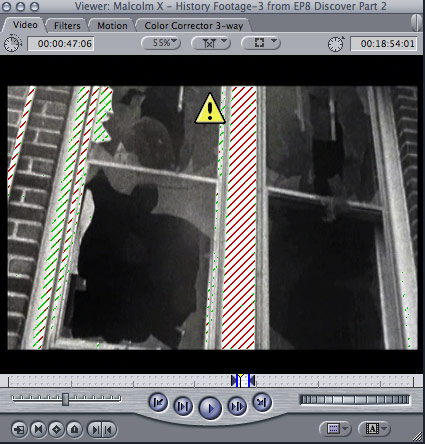
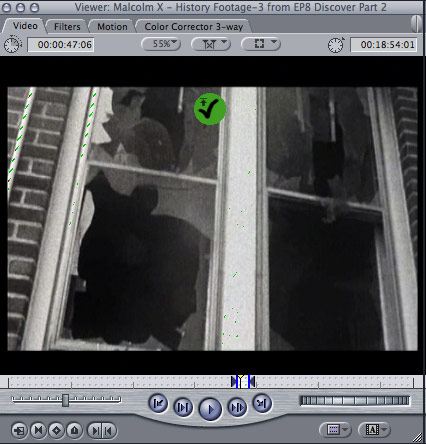
When I am color correcting, I always switch on the luma indication in Final Cut Pro (View > Range Check > Excess Luma). This will tell you with a warning triangle and red "zebra" lines which areas are above the recommended limit. You can then use a 3-way Color Corrector to bring down the highlights until the triangle changes into a green tick.
Then, just before my project is ready for output, I create a new sequence in Final Cut Pro and nest the old sequence inside it by dragging it from the Browser into my new timeline. I then go to Effects > Video Filters > Color Correction > Broadcast Safe to make the entire nested sequence broadcast safe.
Why do I perform this step when I already made it safe earlier? Because you can't be too careful. Maybe I thought I'd corrected each one but I'd actually missed one out by mistake. Maybe I added a last-minute clip that I forgot to correct. And if you're wondering why I nest it instead of just selecting all the clips and applying the filter to all of them, that's because I might be asked to make a last-minute change right before it goes out (in the world of broadcast TV anything is possible at the last minute). Nesting the sequence ensures that everything inside that sequence will be broadcast safe, no matter what I change later on.
It's also worth mentioning that the default settings for the Broadcast Safe filter work for the vast majority of cases. It's rare to have to modify them.
Peaking audio
Like luma levels, audio levels have a maximum limit as well. If they exceed 0 dBFS on Final Cut Pro's audio meters, they will produce an audible "crunch" noise that is very ugly to hear and will instantly distract any engaged viewers.
For broadcast work, it is recommended to have your dialogue around -12 dBFS (but not lower than -18 dBFS), with very loud sounds not exceeding -6 dBFS. Film post production tends to work with a higher dynamic range so the dialogue is normally around -18 dBFS.
The most important thing, however, is that your audio doesn't exceed 0 dBFS. To ensure this, after you've completed your mix, drag the sequence from the Browser to the Viewer, then go to Mark > Audio Peaks > Mark. This will put markers in your timeline at every point where the audio exceeds 0 dBFS. This is another of those situations where even though you've already mixed it, it's so quick and easy to check for peaks that there's no reason not to do it.
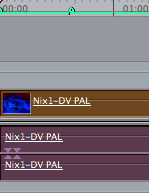
To remove the markers again, go to Mark > Audio Peaks > Clear or Mark > Markers > Delete All.
Incorrect field dominance
Here's one you probably won't spot unless you are using a broadcast monitor. This is why it's important to use a broadcast monitor or at worst, a regular TV, to view your work before output.
Interlaced video uses fields to display the image. There is a field for odd-numbered lines and a field for even-numbered lines, and they are displayed one after the other for every frame. But which one should be displayed first?
NTSC video uses the Lower (Even) field dominance, meaning it shows the even-numbered lines first. If you add a clip to your timeline that has Upper (Odd) field dominance, its fields will be reversed and the motion between those fields will be reversed, so moving objects will tend to judder as they move forwards and then backwards. PAL and HD video use the Upper (Odd) field dominance, with the exception of DV-PAL, which uses Lower (Even).
This is generally not a problem with footage acquired from an NTSC or PAL camera, as it will already have been shot with the correct field dominance. The problem usually occurs with motion graphics and visual effects sequences because they have been created in software that can create both types of footage and has to be manually told which dominance it should use.
If you have been given footage that has the wrong field dominance, first try to obtain correct footage from the person who originally supplied it. If this is not possible, go to Effects > Video Filters > Video > Shift Fields to swap the fields around.
In some cases, Final Cut Pro can get confused and think that a file with the correct dominance is incorrect, so it automatically adds a Shift Fields filter when you import it. If you suspect that the file is actually correct, first check the clip for automatically-assigned filters and remove them.
Finally, it's worth mentioning that when you drag the first clip to a new sequence, Final Cut Pro 6 will ask you to change the sequence settings to match the clip if they differ. A lot of people click Yes without thinking, but taking a moment to check whether the clip in question does actually have the correct settings will save a lot of head-scratching later on.
I hope this article has given you ideas on how to avoid these problems because in a lot of cases, mistakes aren't made through ignorance but instead lack of time, lapses in concentration, tiredness, etc. That's why most of the steps in this article are very quick and easy ways of double-checking after you've already implemented corrections. When your job could potentially be on the line, you can't double-check often enough.
Copyright 2008 Digital Rebellion, LLC.
This article was first published on Digital Rebellion and is reprinted here with permission from the author.
|