|
   
| Tutorial: -How
to Create an "Audio Feedback Menu" in DVD Studio Pro
2 |
September, 2003
How
to Create an "Audio Feedback Menu" in DVD Studio Pro
2
Project Outline: Create an Audio Feedback each
time a button is selected in DVD Studio Pro 2.0
Requirements: Any 3 tracks or a single m2v with 3 tracks
by Alex Alexander
Preface:
This started as a question that came up regarding how to create
an audio feedback each time a button is selected. While this
can certainly be done, it is somewhat slow. If you need such
a function, this is for you, otherwise I wouldn't recomend doing
this.
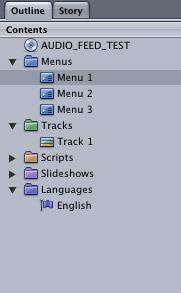
Summary:
In order to simulate
an audible feedback action, I have created three menus, each
of which are identical to the other: Menu 1, Menu 2 and Menu 3.
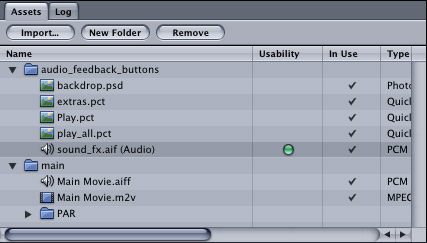
Each of these menus has
a Background PSD file, a PICT map and an audio sample.
The difference in these
menus are the default button assignments as well as two
buttons that are essentially hidden and used to create an auto-action
when the remote's up and down functions are executed.
Menu1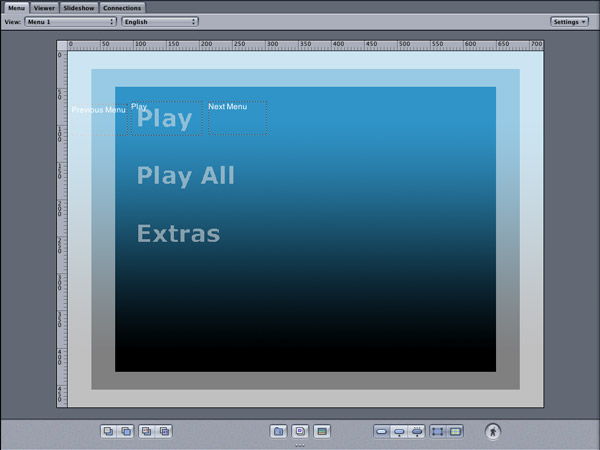
Menu #1 has a default button
which is set to play and two navigational settings which
are directly tied to the two hidden buttons on either sides of
the play button in each of three menus. Play has no Auto Action
set, which means it remains highlight when it is the current
selection in the menu the user sees. An audio asset is assigned
to each of the three menus.
Default Button: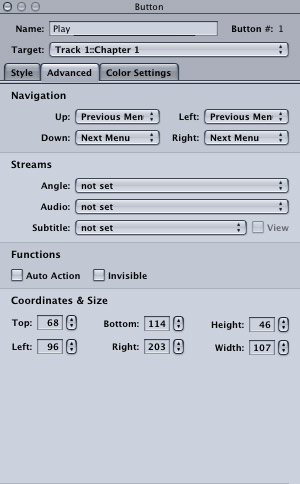
The other two buttons
are not over any PICT overlay items. The user can select Play,
or the user can use the remote to go Up or Down.
The goal here is that when the remote is used to go up or down,
we will trigger an Auto Action. In the Advanced tab of
the Play button, we have Navigation set to the other two buttons
that have no PICT overlay area. UP is set to the button
called Previous Menu and Down is set to the button
called Next Menu. The user sees three buttons on the menu,
the first of which is play.
The user can use the
remote to go up or down. Up should highlight the button Extras
in the menu the user views and down should highlight the button
Play All. When the user clicks down on the remote, the
user is selecting the hidden button called Next Menu.
The Next Menu button is set to an Auto Action which jumps
to Menu #2 as soon as selected.
Menu 2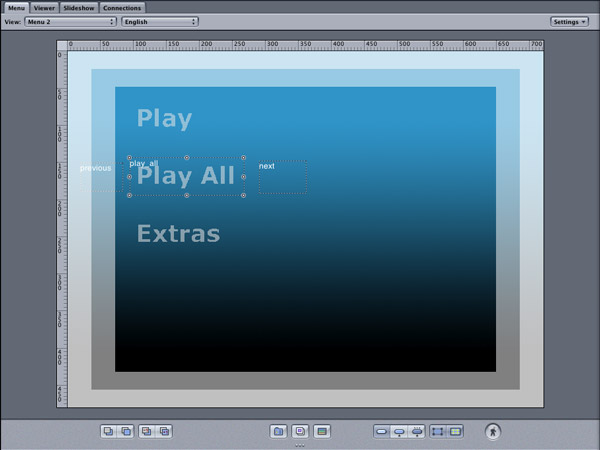
Menu 2 works exactly the same way.
Menu 2 has a default button set to Play All. Menu 2 also
has two buttons again set to the navigational advanced setting
of the default play button. Again, this give the default button
of Play All the user choice of Activating Play All
or using navigation to go up or down. As before, going up or
down is set to an Auto Action, loading either Menu 1, i.e. Play
Menu or Menu #3, i.e. the Extras menu.
Since each menu has the
same highlight settings and an audio asset, each menu item, i.e.
Play, Play All and Extras from the user point of view highlights
when selected and gives an audible feedback.
Menu 3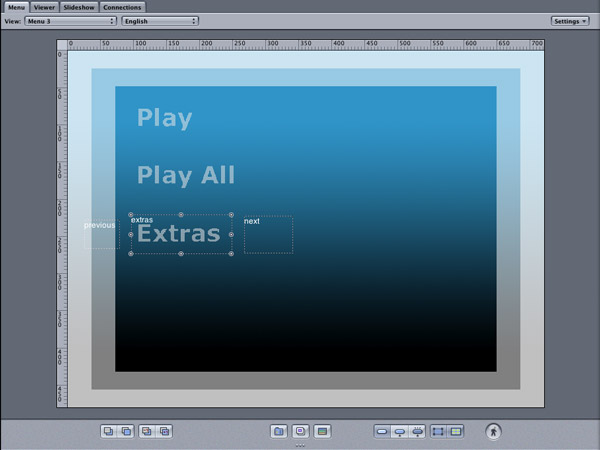
Do the same for Menu
3 as the prior Menu 1 and 2.
© copyright
2003 Alex Alexzander
|