Motion Paths and the Bezier Handle in FCP
By Ken
Stone
We have seen images move across and around
the screen in curved paths, speeding up and slowing down in graceful
motion. This animation process can be done in FCP. We can create
flowing motion with speed changes by working with motion paths
and Bezier handles.
Before we can sculpt our motion paths we have to create them so we will animate a video clip to work with. We will accomplish this by changing the position of the image over time by setting Keyframes.
Animation
I am going to use a video clip for this example but I can use any image from any source like Photoshop. My art can be a photo, text, or anything I want.
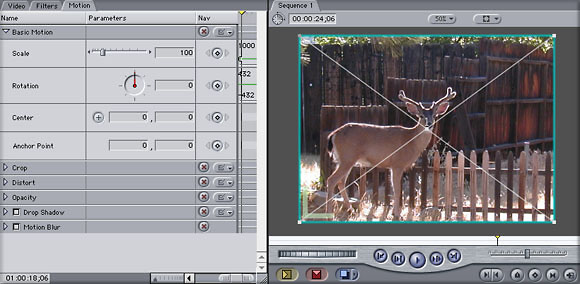
I drop a clip onto the TimeLine and double click on the clip to load it into the Viewer, I then select motion tab in the Viewer. In working my example I will use both the motion tab to set Keyframes and the Canvas window to position my image by dragging the image to my desired position.
In my Canvas window I set my drop down menus to image size 50%
and 'image + wireframe'.
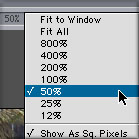
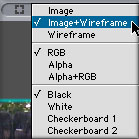
I have started by using a full video clip at 720 x 480 but in
order to be able to move it around the screen I am going to have
to reduce it's size. I move my playhead to the first frame of
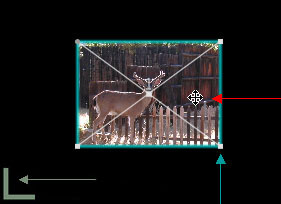
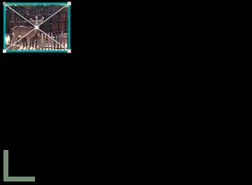
the clip. Clicking on the image in the Canvas activates the 'image
+ wireframe'. I click on one of the four corners of the blue bounding
box (Blue arrow) and drag in until I have reduced the image to
the size that I want. Placing my cursor on the image turns it
into a move tool (Red arrow). The First frame marker also shows
(Green arrow). You can size your image by entering a numeric value,
like 25%, in the scale box in the Motion tab. You will need to
set a Keyframe by clicking on the Keyframe button in the scale
section.
With my Move tool I click and drag my image to place it in it's
starting position.
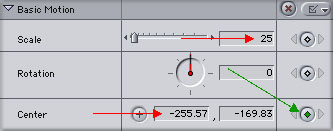
Looking over at my motion tab I can see that my image size has
been scaled down to 25%. Looking at the 'Center' section I can
see the numerical value for the new position that I have given
my image. With my image scaled and positioned and my playhead
at the first frame I set a keyframe in the motion tab in the 'Center'
section, the Keyframe button turns green (Green arrow). This will
be the starting position for my animation.
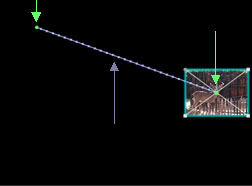
I know that half way through the clip I want my image to move
across the screen and down. In the TL I place my playhead at the
mid point of my clip. In the Canvas using the Move tool I click
and drag my image to it's second location. As I drag my image
a purple 'motion path' is being drawn (Purple arrow). When my
image is in position I release the mouse button, FCP sets a new,
second Keyframe for me (Green arrows mark first and second Keyframes).
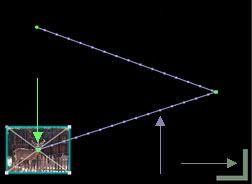
I want one last movement for my image so on the TL I move my playhead
to the last frame. Again using the Move tool I drag my image back
across the screen and position it at the bottom of the screen.
When I release the mouse button my third Keyframe (Green arrow)
is set for me. We can see that a second motion path has been drawn
between the second key frame and third Keyframe (Purple arrow).
Lower right hand corner is the last frame marker. Hey, this looks
a lot like Picture
in Picture without the background picture.
Motion Paths and the Bezier Handle
Okay, my motion path is in place, now I can get down to the subject of this article motion Paths and the Bezier Handle. To do this work I have changed my Canvas from 'image + wireframe' to 'wireframe'. I have my motion path but look at it, it's ugly, no finesse. If played, the image would start out at full speed, when it got to the end it would stop instantly. Not very real world. We will change both the shape of the motion path and the speed of the image as it moves from Keyframe to keyframe. Control clicking on the second Keyframe will produce a contextual menu. From this Menu select 'Linear'. There is our Bezier handle. You can see that the shape of my paths has been changed from a hard angle to a curve. Better already but still not what I want to end up with.
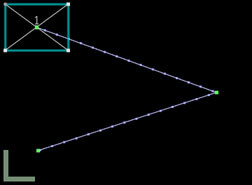
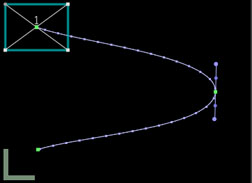
Shaping motion paths
Let's look at this thing called the Bezier handle. This long shaft
is centered on the Keyframe (Green arrow). At the ends of the
handle are purple dots which I call the 'shape control' dots (Red
arrows). Closer to the center of the shaft are two smaller purple
dots that I call the 'velocity' dots (White arrows). On the motion
path are still more, even smaller purple dots (Yellow arrows).
Don't know what to call these things, Apple calls them 'ticks'
but I think that 'speed bumps' would be more appropriate, more
on this later.
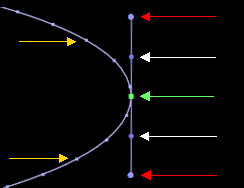
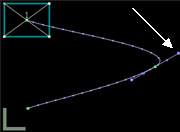
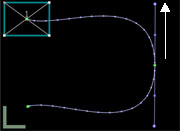
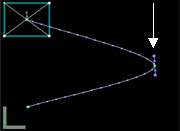
When I place my cursor on either one of the two 'shape control'
dots (Red arrows) on the Besier handle it turns into a crosshair,
I can now click and drag the shape control dot left or right.
Doing this changes the angle of the curve. I can drag the shape
control dot up or down the shaft, this changes the depth of the
curve. Think of it as being a joy stick. As you move the shape
control dot you will see the other shape control dot, at the other
end of the handle, moves equally. This enables you to shape the
motion path on both sides of the Keyframe at the same time.
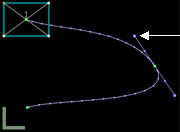 Shape Control moved to left |
 Shape Control moved to right |
 Shape Control dragged up |
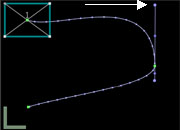
 Shape Control dragged down |
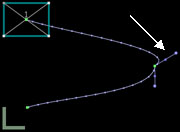
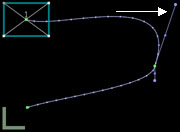
If I want to reshape only one side of the Bezier curve I can hold
down the Shift key and drag. To change the angle of only one side
of the Bezier curve hold down the Command key and drag. To change
both the shape and angle of only one side of the curve hold down
the Shift and Command key then drag. If I want to remove a Bezier
curve and it's associated handle Control click on the Keyframe
and from the Contextual menu select 'make corner point'. This
will return your Keyframe motion path to it's original shape.
 Shift drag to lengthen only one handle |
 Command drag to change the angle of one handle |
 Command shift drag to change the length and angle of only one handle |
Clicking on the shape control dot and dragging around in a circle
one full revolution will cause the motion path to turn into a
loop, like a rollercoaster. I can also set Bezier handles on both
my starting and ending Keyframes. This will produce a one sided
Bezier handle but the controls will work the same.
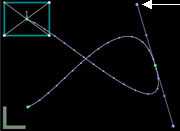 Dragging the Shape Control in a circle creates a loop |
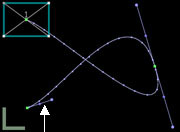 Control click on last Keyframe sets Bezier handle on ending Keyframe |
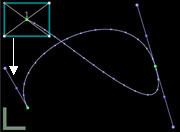 Changes the shape of the path running to the last Keyframe |
You can see that I can really create almost any shape I want for
my motion path. I can further enhance the shape of my motion path
by adding new Keyframes anywhere along the motion path. If I place
my cursor on any of the small purple dots on the motion path that
I call 'speed bumps' my cursor will turn into a Pen tool. When
I click with the Pen tool a new Keyframe will be added with Bezier
handles. To remove a Keyframe from the motion path place your
cursor on the Keyframe, control click and choose 'delete point'
from the contextual menu. At any time you can place your curson
on any Keyframe and click and drag the keyframe to a new location.
As I work I often want to preview my motion path. As I am in 'wireframe'
only there is no image for FCP to redraw to the screen. This means
that if I hit 'Option' and 'P' from the keyboard (turn snapping
off) FCP will play my wireframe from start to finish in real time
without the need to render.
| | Home | Next Meeting | Forum | Join | Past Meetings | Talent Directory | Reviews | Features | Tutorials | About Us | Discounts | Store |Training Classes |Contact Us | |